Friday, November 21, 2014

[Lollipop] 2012 edition Nexus 7 running slow after installing Lollipop? This might help.

Here's how I speed up my LOLLIPOPed Nexus 7 2012. (From now on let's all use "lollipop" as a verb that means screwed-over by an update). These steps are all easy to do and reversible.
  • Settings > About tablet > tap on the "Build number" entry seven times, which will unlock "Developer Options".
  • Settings > Developer options > Set WINDOW ANIMATION SCALE, TRANSITION ANIMATION SCALE and ANIMATOR DURATION SCALE all to ANIMATION OFF
  • Settings > Developer Options > Background process limit > at most 3 processes
My tablet now goes fast enough to keep me sane until it is (hopefully) fixed with updates.

Friday, October 17, 2014

Nexus 7 - Fix lags in 7 easy steps

Looking for how to fix Nexus 7 lag? Is your Google Nexus 7 lagging after Kit Kat update? Is your Nexus 7 exhibiting lag after an update in general? Is your Nexus having slow battery charging problem? Then read on!
 
In this post you’ll see how to speed things up a bit with a short and simple trick to speed up your Nexus 7. The steps below can be a bit tricky/finicky to get right so I suggest you read through them a couple of times first before attempting them.
 
1. Power off your tablet.
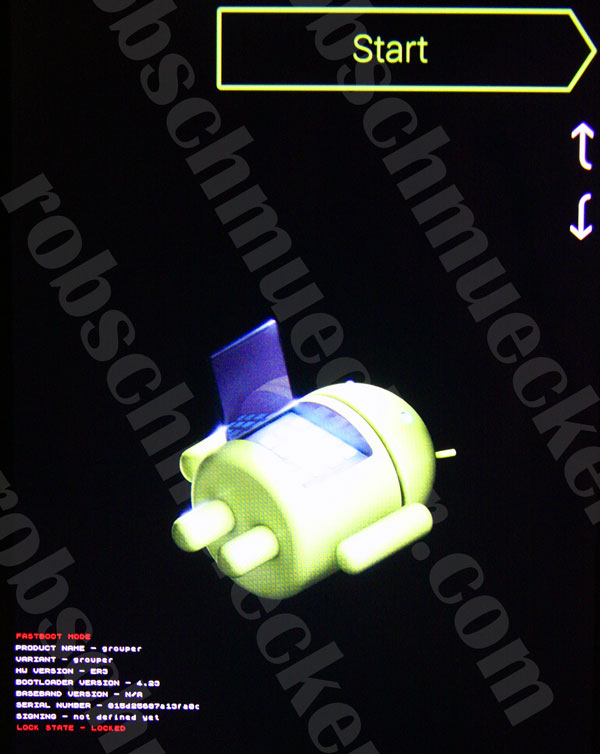
2. Now press and hold Power + Volume Down until you see this screen:


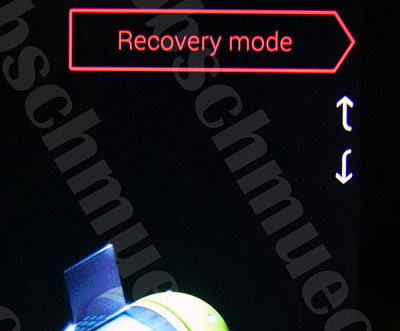
3. Now use the Volume keys to select Recovery (press Volume Down twice), until your screen looks like below and then press Power to select.
 
 
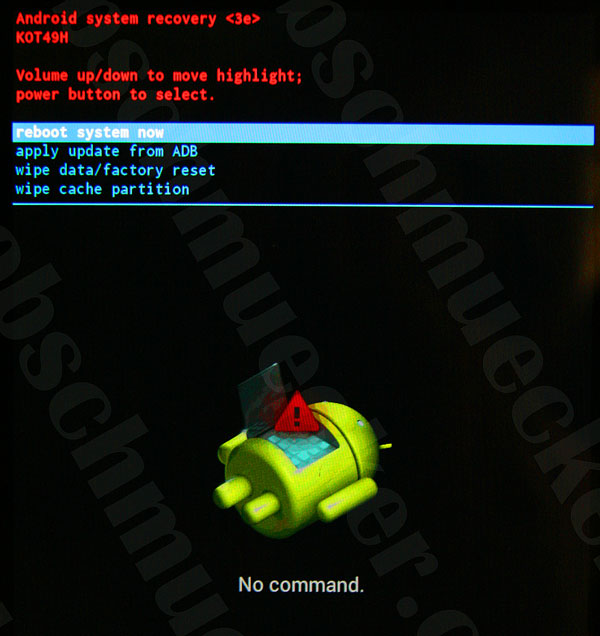
4. You should now see the Google logo for 5-10 seconds before you see an otherwise blank screen with our little Android buddy looking worse for wear and the text “No command.”


5. Now you will press Power + Volume Up for about 3 seconds before releasing Volume Up (keeping Power pressed). That should land you at the screen below:
 
 
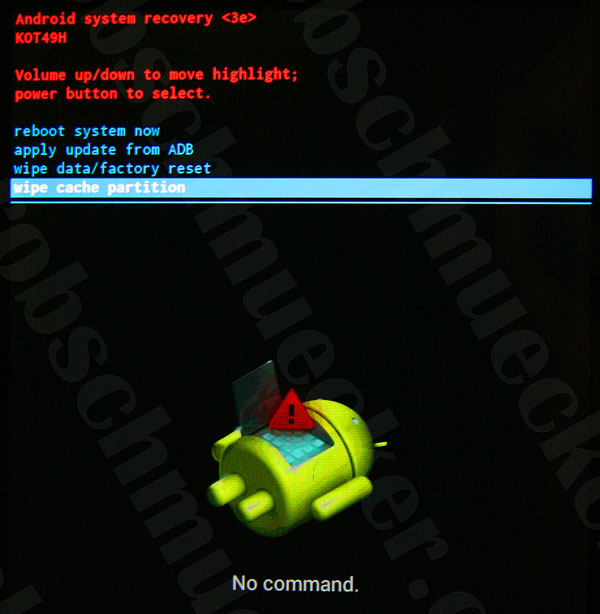
6. Again here, use the Volume buttons to move the cursor up or down. Press Volume Down 3 times to highlight “wipe cache partition” then press Power to select. (Be careful not to select “wipe data/factory reset”).
 
 
7. By now your cache should have been wiped clean, it took about 1~2 seconds on my Nexus. You will then have a confirmation message in the bottom left of the screen like the screen below:
 
 
8. Press the Power button with “reboot system now” selected (which should be selected by default) and your Nexus will boot up and hopefully be much more responsive and snappy!
 
Disclaimer: This is not guaranteed to make your device faster, nor do I take any liability whatsoever for any issues that arise from following the procedure which is here purely as a suggested solution to fix Nexus 7 lag.
 

Tuesday, September 16, 2014

Nexus 7 - How to read & write to a USB drive (without rooting)


USB OTG technology has enabled android phones & tablets to connect to the external storage devices like USB stcik, portable HDD, memory cards, etc. so that data can be shared. In this post, i am going to explain, how to connect devices to Android USB OTG and read & write to a USB drive without root access with the help of free apps available on the google play store.
 
OTG – What it is and what it does
  • The term OTG stands for On-The-Go and it is often called as USB OTG or just OTG.
  • OTG technology allows us to connect an Android device to USB storage devices, flash disks, mouse/keyboard or even a USB gaming controller.
  • OTG technology allows us to transfer documents, pictures, music, video etc. from the USB storage.
How to Connect USB Devices to Android Nexus using OTG Without Root
  • Install a USB OTG app from Google Play store.
  • If you are using a USB card reader, first insert the memory card in the USB card reader.
  • Attach the USB device’s USB port to the OTG cable.
  • Attach the OTG cable’s microUSB port to the Android Device.
  • The app should launch automatically or else try manually launching the app.
Free app to read & write to a USB drive (without rooting)
  • Download and install the free Android app Total Commander from the Google Play App store, and launch the app.
  • Install the USB-Stick Plugin TC from the Google Play Store. There are two versions of this plugin. Use free version first to check, whether your device is compatible with OTG functionlity or not.
  • Launch Total Commander and you will see "USB-Stick plugin (free)" option.
  • Now, Plug in your USB device and Launch Total Commander (Launch automatically mostly).
  • Click ‘USB-Stick Plugin’.
  • Rotate the tablet to a landscape orientation and select files from the Nexus 7 (on the right) and click copy icon (two pages with arrow sign).
  • Confirm ‘Copy’ or 'Move'.
  • You’re Done!
  • Do the reverse and drag files from the USB drive to your Nexus 7.
 

Tuesday, December 11, 2012

3 Reasons Why You Should NOT Upgrade to Windows 8

Today we look at the other side of the same coin- reasons why you should not upgrade to Windows 8. These are some fairly valid reasons, and if they do look like fairly big issues, then you might as well hold off, even though the cost of upgrading or buying Windows 8 fresh isn’t much.


1. Learning curve is steep: With the Metro UI, it is a case of both a boon and a bane. While it does put important information and your apps right up there, you do get somewhat confused as to how to get to the desktop. For most people, working their way around the additional layer of the interface may prove to be quite a learning curve. The concept of active edges is something that adds to the complication. But what may really confuse most people is the missing Start button once you actually trip your way to the desktop, and its absence creates a lot of unfamiliarity issues. The new landing screen UI and the ribbon interface introduced in several applications are rather unique, no doubt, and work towards making Windows 8 better for the touchscreen as well. But, some tweaks still need to be deployed. Maybe getting back the start button will help win back some old users.

2. Initial excitement about Metro UI: Yes, Metro UI looks brilliant. On the face of it, the colorful themes and the constantly updating tiles are very appealing, visually. However, do remember that for most tasks, you need to move away from the Metro UI and go to the desktop mode. Immediately, the utility of the UI fades away. Once the initial excitement about the unique user interface wears out, you will be left with a rather complex UI that needs to be pushed out of the way every time you log in to the PC. On a good day, someone who is more comfortable with the more traditional desktop will not use Metro UI often. On a bad day, abuses and swearing will be the order of the day. Plus, switching between the Metro and desktop modes is via only one button on the keyboard, and that is bound to confuse those users who aren’t techies.

3. The OS needs polishing: We always recommend holding off till at least one major service pack arrives for an OS. With Windows 8, you will regularly get patches and updates for the OS in the tune of 140MB to 160MB each. Device drivers would have been another aspect, but we are talking about patches that either solve a security breach or tweak something that will improve performance and compatibility in various scenarios. There is a lot of work still to be done before Windows 8 is stable and what you would call a polished OS. Good looks can only take you so far. If you are a sucker for a completely stable OS, then you might as well hold off for a while. Certain drivers and applications may not work properly on the new OS, as is fairly common, and some older hardware may have compatibility issues as well. It usually takes Microsoft about six months to one year to polish the OS into accepting wider compatibility and ironing out issues that users may report for specific issues. The biggest indicator of that is when the first major service pack comes out post the OS being available to consumers. Okay, Microsoft says that for the first time ever, Service Pack was released for Windows 8 even before it arrived on shelves. Which begs the question – how bad was the OS in the first place?

If you want an OS that will work seamlessly with all your applications and hardware, we suggest not upgrading to Windows 8 just yet. While most of the stuff may work fine, there is a chance that there will be that one app or device that could create an issue. And that will more than ruin the experience of upgrading. Hold on, and patience will pay off!

Tuesday, December 4, 2012

5 Reasons Why You Should Upgrade to Windows 8


To upgrade, or not to upgrade? A lot has been said about Microsoft’s latest desktop operating system, Windows 8. Some love it, others hate it, but surely almost everyone has considered upgrading from Windows XP, Vista or 7, whichever one you may be using at the moment.

Windows 8 brings significant advantages to those who are upgrading their PCs. The Windows 8 operating system offers a significantly different user interface straight up, but also offers improvements in performance, and doesn’t cost a lot of money to either upgrade or buy a new license.

Today, we look at the top five reasons why you should shift to Windows 8, on your PC or laptop.

1. Doesn’t cost much: Windows 8 does not cost a lot of money, unlike the previous OSes from Microsoft. If you have purchased a new laptop or desktop after May this year, you are most likely eligible for an upgrade to Windows 8. The cost for this upgrade would be Rs 699. If however, you are buying a full license of Windows 8 without linking to an upgrade, the cost for Windows 8 Pro will Rs 1999. Compare this to Windows 7 Home Premium, which cost upwards of Rs 5000.

2. Faster performance: On the same hardware, the system performance of Windows 8 is much quicker than its predecessor. Not to say that Windows 7 was sluggish in any way, but Windows 8 just takes the speed to the next level. Start-up times are shorter, and the general usability is quicker as well. If you happen to install Windows 8 on a Solid State Drive (SSD), then the experience will be better than delightful!

3. Equally comfortable with touch and the keyboard+ mouse combo: The Windows 8 user interface seems to be walking the perfect balance between being compatible with touchscreen devices and on a conventional laptop with a keyboard and a trackpad/mouse. The idea was always clear - this OS will work on a tablet as well as a laptop. We will see a rise of hybrid devices - ultrabooks that also offer touchscreens.

4. More secure out of the box: It is said that “this is the most secure Windows ever”, but that is usually said for all new OSes. But, let us examine the evidence here. Secure Boot will prevent the OS from booting up on any device that isn't signed up by the OEM or by Microsoft. All apps downloaded from Windows Store go through a thorough process of ensuring that they are clean. NSS Labs claims that Internet Explorer 10 is blocking 99% of malware headed its way, something no version has done till now. Surely, the potential security benefits should be enough for you to upgrade!

5. Reset & Refresh: Windows users are well versed with the pain of reinstalling Windows, be it because of bloating over a period of time, or because of some driver/application issue. With Windows 8, the problem has been solved to a huge extent. You can use the Reset feature, which will restore the PC to the exact factory settings as out of the box. This is the alternative for reinstalling the OS, as we are used to. The Refresh feature, on the other hand, retains some settings, files and Metro apps, but removes the rest of the software, applications and changes that may have happened recently. This feature is the alternative for the “Restore to an earlier date” setting that we had seen on Windows versions till now.

Thursday, May 19, 2011

SQL Azure - Focus on your application. Not the infrastructure.

SQL Azure delivers cloud database services which enable you to focus on your application, instead of building, administering and maintaining databases. SQL Azure (formerly SQL Server Data Services and later SQL Services) is a cloud-based service from Microsoft offering data storage capabilities. SQL Azure allows relational queries to be made against stored data, which can either be structured or semi-structured, or even unstructured documents. SQL Azure features querying data, search, data analysis and data synchronization. SQL Azure uses Microsoft SQL Server as a backend, but it exposes only a subset of the data types — including string, numeric, date and boolean. It uses an XML-based format for data transfer. Like Microsoft SQL Server. SQL Azure uses T-SQL as the query language and Tabular Data Stream (TDS) as the protocol to access the service over internet.

Monday, January 31, 2011

Cloud Computing & its Services

Cloud computing is location-independent computing, whereby shared servers provide resources, software, and data to computers and other devices on demand, as with the electricity grid. Cloud computing is a natural evolution of the widespread adoption of virtualization, service-oriented architecture and utility computing. Details are abstracted from consumers, who no longer have need for expertise in, or control over, the technology infrastructure "in the cloud" that supports them.
Cloud computing describes a new supplement, consumption, and delivery model for IT services based on the Internet, and it typically involves over-the-Internet provision of dynamically scalable and often virtualized resources. It is a byproduct and consequence of the ease-of-access to remote computing sites provided by the Internet. This frequently takes the form of web-based tools or applications that users can access and use through a web browser as if it were a program installed locally on their own computer.

Cloud Computing Services:
Cloud computing is broken down into three segments: “software”, “platform” and “infrastructure”. Each segment serves a different purpose and offers different products to businesses and individuals around the world.
 
Software as a Service (SaaS) is the service based on the concept of renting software from a service provider rather than buying it yourself. The software is hosted on centralized network servers to make functionality available over the web or intranet. Also known as “software on demand” it is currently the most popular type of cloud computing because of its high flexibility, great services, enhanced scalability and less maintenance. Yahoo mail, Google docs, CRM applications are all instances of SaaS. With a web-based CRM all that employees need to do is register and login to the central system and import any existing customer data. The service provider hosts both the application and the data so the end user is free to use the service from anywhere. SaaS is very effective in lowering the costs of business as it provides the business an access to applications at a cost normally far cheaper than a licensed application fee which is possible due to its monthly fees based revenue model. With SaaS user need not worry about installation or upgrades.

Platform as a Service (PaaS) offers a development platform for developers. The end users write their own code and the PaaS provider uploads that code and presents it on the web. SalesForce.com’s Force.com is an example of PaaS. PaaS provides services to develop, test, deploy, host and maintain applications in the same integrated development environment. It also provides some level of support for the creation of applications. Thus PaaS offers a faster more cost effective model for application development and delivery. The PaaS provider manages upgrades, patches and other routine system maintenance. PaaS is based on a metering or subscription model so users only pay for what they use. Users take what they need without worrying about the complexity behind the scenes.
There are basically four types of PaaS solutions – social application platforms, raw compute platforms, web application platforms and business application platform. Facebook is a type of social application platform wherein third parties can write new applications that are made available to end users. The CRM solutions provided by the companies are examples of business application platform. Developers can upload and execute their applications on Amazon’s infrastructure which is an example of raw compute platform. While the Google provides APIs to developers to build web applications which is an example of web application platform.

Infrastructure as a Service (IaaS) is delivery of the computing infrastructure as a fully outsourced service. Some of the companies that provide infrastructure services are Google, IBM, Amazon.com etc. Managed hosting and development environments are the services included in IaaS. The user can buy the infrastructure according to the requirements at any particular point of time instead of buying the infrastructure that might not be used for months. IaaS operates on a “Pay as you go” model ensuring that the users pay for only what they are using. Virtualization enables IaaS providers to offer almost unlimited instances of servers to customers and make cost-effective use of the hosting hardware. IaaS users enjoy access to enterprise grade IT Infrastructure and resources that might be very costly if purchased completely. Thus dynamic scaling, usage based pricing, reduced costs and access to superior IT resources are some of the benefits of IaaS. IaaS is also sometimes referred to as Hardware as a Service (HaaS). An Infrastructure as a Service offering also provides maximum flexibility because just about anything that can be virtualized can be run on these platforms. This is perhaps the biggest benefit of an IaaS environment. For a startup or small business, one of the most difficult things to do is keep capital expenditures under control. By moving your infrastructure to the cloud, you have the ability to scale as if you owned your own hardware and data center.

Friday, January 28, 2011

Adobe Flash

Adobe Flash (formerly Macromedia Flash) is a multimedia platform used to add animation, video, and interactivity to web pages. Flash is frequently used for advertisements and games. Flash manipulates vector and raster graphics to provide animation of text, drawings, and still images. It supports bidirectional streaming of audio and video, and it can capture user input via mouse, keyboard, microphone, and camera. Flash contains an Object-oriented language called ActionScript.
The Adobe Flash Professional multimedia authoring program is used to create content for the Adobe Engagement Platform, such as web applications, games and movies, and content for mobile phones and other embedded devices. To explore about flash & its functionality, please follow the following link:
1. Flash Tutorial for Beginners
2. Flash CS3 Tutotial
3. Flash CS5 Help

Sunday, January 23, 2011

Sixth Sense Technology

This Post contains details about Sixth Sense Technology. It contains introduction, components, working & application of Sixth sense technology in the form of pictures. Please go through pictures for better understanding.


Surface Independent Interactive Computer System

SiiCS is a wearable portable device that can convert any surface into an interactive touch screen and users can interact using natural finger gestures. SiiCS can recognize many objects from the real world and extract related information from the internet and either display it on the object itself or speak it out to the user in case of Visually impaired people. SiiCS derives its motivation from MIT Sixth sense technology, Microsoft surface and Nintendo Wii. The difference here is that SiiCS is dedicated to Visually impaired people and handicapped people apart from regular users.SiiCS represents the intersection of the Computer Science most significant concepts like Human Computer Interaction, Surface independent computing, Machine Vision & Object detection, Gestural computing and Text to speech systems. SiiCS is winner of Microsoft Imagine Cup Software Design Accessibility Innovation Award 2010 and is still in the pre beta stage.
Features:
  1. Portable, scalable and wearable device
  2. Can convert any surface into an interactive touch screen
  3. Users can interact with real time data and information using natural finger gestures.
  4. Can detect real world objects and project their information from the web onto their surface such as bing search results, wikipedia definition, its amazon rating and popularity etc.
  5. Can operate computer screen using a finger in the air, users can draw on any surface, zoom in zoom out things etc.
  6. Supports multi user interaction at the same time.
  7. Watch the following video for more information about SiiCS:

Friday, January 14, 2011

Microsoft Surface

Microsoft Surface (codename Milan) is a multi-touch product from Microsoft which is developed as a software and hardware combination technology that allows a user, or multiple users, to manipulate digital content by the use of gesture recognition. This could involve the motion of hands or physical objects. Microsoft Surface is a surface computing platform that responds to natural hand gestures and real world objects. It has a 360-degree user interface, a 30-inch reflective surface with a XGA DLP projector underneath the surface which projects an image onto its underside, while five cameras in the machine's housing record reflections of infrared light from objects and human fingertips on the surface. The surface is capable of object recognition, object/finger orientation recognition and tracking, and is multi-touch and is multi-user. Users can interact with the machine by touching or dragging their fingertips and objects such as paintbrushes across the screen, or by placing and moving placed objects. This paradigm of interaction with computers is known as a natural user interface (NUI). To get more details, please download the Microsoft Surface.pdf file.

Thursday, January 13, 2011

SQL Server 2008 Features

Microsoft SQL Server 2008 provides a number of enhancements and new functionality, building on previous versions. Administration, database maintenance, manageability, availability, security, and performance, among others, all fall into the roles and responsibilities of the database administrator. This Post provides the top ten new features of SQL Server 2008 (referenced in alphabetical order) that can help DBAs fulfill their responsibilities.
1. Activity Monitor
2. SQL Server Audit
3. Backup Compression 
4. Central Management Servers
5. Data Collector & Management Data Ware House
6. Data Compression
7. Policy Based Management
8. Predictable Performance & Concurrency
9. Resource Governor
10. Transparent Data Encryption
To see the full description of features please explore the below given link: 

Sunday, January 9, 2011

Getting Started with Windows Mobile Application Development

Creating programs that run on Windows Mobile phones is just as easy as writing apps for the desktop. Follow the steps on this page and you'll have a running Windows Mobile application.

Get the Tools

You need the following tools to create a Windows Mobile application:
Get Visual Studio 2005 or 2008. You will need Visual Studio to develop applications for Windows Mobile. It will allow you to author, debug, and package your application for delivery from one easy-to-use interface. Learn more at the Visual Studio Developer Center.
Download the latest Windows Mobile SDK. The SDK contains the API header and library files you will need to access Windows Mobile functionality as well as documentation, sample application projects, and emulators that allow you to deploy and debug your application, even if you don’t have a Windows Mobile device.
Get ActiveSync or Windows Mobile Device Center. You will need to have ActiveSync or Windows Mobile Device Center in order to deploy applications to a Windows Mobile device or to an emulator. Windows Vista ships with Windows Mobile Device Center. For Windows XP, you can download and install the latest version of ActiveSync if you don’t already have it.

Create, Build, and Run an Application

Here's how to create and run an empty Windows Mobile application:
Create a smart device project. Open Visual Studio 2008. On the File menu, select New->Project. In the Project Types pane on the left, expand Visual C# and select Smart Device. In the Templates pane on the right, select Smart Device Project and click OK. When the Add New Smart Device Project wizard pops up, select Device Application and click OK.
Add a little functionality. From the Toolbox pane on the left, select a button and drag it onto the form in the design view. Double-click the button to create a Click event handler. In the handler, type the following line of code:
button1.Text = “Click!”;
Build and deploy your application. To run your application on a Windows Mobile device, make sure it is connected to the desktop. Press the F5 key. From the drop-down list, select a device or an emulator to deploy to, and click OK. Your application should be up and running.

Next Step

Once you’ve completed a simple application, find out what else you can do with Windows Mobile.

Simple Web Service in C#

A web service is typically an application programming interface (API) or Web API that is accessed via Hypertext Transfer Protocol (HTTP) and executed on a remote system, hosting the requested service. Web services tend to fall into one of two camps: big web services and RESTful web services.
The W3C defines a "web service" as "a software system designed to support interoperable machine-to-machine interaction over a network. It has an interface described in a machine-processable format (specifically Web Services Description Language WSDL). Other systems interact with the web service in a manner prescribed by its description using SOAP messages, typically conveyed using HTTP with an XML serialization in conjunction with other Web-related standards."  
The W3C also states, "We can identify two major classes of Web services, REST-compliant Web services, in which the primary purpose of the service is to manipulate XML representations of Web resources using a uniform set of "stateless" operations; and arbitrary Web services, in which the service may expose an arbitrary set of operations." Follow the below link to see example of simple Web Service in C#. 
 

Apple Push Notification Services

The Apple Push Notification Service is a mobile service created by Apple Inc. that was released with iOS It uses push technology through a constantly-open IP connection to forward notifications from the servers of third party applications to the iPhone or iPod Touch and now the iPad; such notifications may include badges, sounds or custom text alerts. To get more details, Please follow the below mentioned links:

http://mobiforge.com/developing/story/programming-apple-push-notification-services

For othere more information Just copy & paste below link in your browser address bar: 
http://developer.apple.com/library/ios/#documentation/
NetworkingInternet/Conceptual/RemoteNotificationsPG/
ApplePushService/ApplePushService.html

Friday, October 1, 2010

Windows 7: Set a New Windows Explorer launch Folder


When you open Windows Explorer, it always opens to the Libraries folder showing you the default libraries. That is absolutely perfect if you are using Microsoft’s default file organization, which designates Libraries as the overall container of your folders. But if you don’t want Windows Explorer to open your Libraries you can make Windows Explorer to open different folder of your choice. Here is how:
1. Right click Windows Explorer icon Picture of Windows Explorer icon  in the taskbar and then right click Windows explorer icon from the list as shown below:
Picture showing Context Menu of Windows Explorer
2. Choose properties from the list and move to target field as shown below:
Picture showing Windows Explorer Properties
3. Change the value of the target field to folder of your choice as if I want to open a specific folder say C:\softwares, then change the value in the target field as %windir%\explorer.exe C:\Softwares.
4. Change the value as per your liking but make sure that you leave the space between %windir%\explorer.exe and C:\Softwares.
5. Now, if you want Windows Explorer to open special, pre-set system folders then you want to enter special syntax in the target field.
  • Computer: %windir%\explorer.exe ::{20D04FE0-3AEA-1069-A2D8-08002B30309D}
  • My Documents: %windir%\explorer.exe ::{450D8FBA-AD25-11D0-98A8-0800361B1103}
  • Network: %windir%\explorer.exe ::{208D2C60-3AEA-1069-A2D7-08002B30309D}
6. After you have changed the target field, click OK. Next time you launch Windows Explorer, it will open the folder of your choice.

Search the Internet from Start Menu


The start menu search box is convenient way to search through PC – but you can also use this search box to perform double duty by making to search the internet from well within the Start menu search. To enable this log on with an administrator account and perform this:
1. In the Start menu Picture of Start Button  search box, type ‘gpedit.msc’ (without quotes) and press enter to run the Group Policy Editor.
2. Go to User Configuration –> Administrative Templates –> Start Menu and Taskbar.
3. Double click “Add search internet link to Start Menu”, and then from the screen that appears, select Enabled. Then click OK and close the Group Policy Editor. See the figure for details":
Picture showing 'Addition of Search Internet Link to Sart Menu' via Group Policy Editor
4. From now on as soon as you type the item in the search box, a ‘Search the Internet’ link will appear. Just click on the link to launch the search in your web browser with the default search engine as shown in figure:
Picture showing 'Search the Internet'  on Start Menu Search

Thursday, September 30, 2010

Build your own internet Search Connector: Windows 7


Windows 7 has a very useful new feature called a search Connector that lets you search through a Web site from right inside Windows Explorer. With it, you type in a search term and select the search Connector for the site you want to search, Windows Explorer searches the website without having to open the Internet Explorer and the result appear right inside Windows Explorer. Click any of the result to head there using your default Web Browser.
Normally, you’ll need to get each search connector from the Web site through which you want to search, and very few connectors are available, but you can create your own by this simple trick. Sites normally stick to OpenSearch standards in order for their connectors to work.
The search connector uses Windows Live search as a kind of go-between. You Don’t need to know any code for this, Just follow these steps:
1. Copy the following text and paste it into notepad. The text you will need to change is in bold:
Picture showing source code for Search Connector
2. Save the file in notepad, choose UTF-8 from the Encoding drop down list near the bottom of the Save As screen and give it an .osdx extension.
Picture showing saving of code of custom Search Connector via Notepad
3. A sample search connector (searching Wikipedia) has the above modified code as:
Picture showing source code for Wikipedia Search Connector
4. In Windows Explorer, right click the .osdx file and select Create Search Connector. The Search Connector will be created.
Pcture showing how to create Search Connector from Search Connector Discription file
Picture showing addition of Search Connector to the Searches folder
5. You can now use your Search Connector. To use it go to Your_User_Name –> Searches –> Connector.